Reading an intelligence card
Every event in the feed is a card. Once you can read one at a glance, you can scan the whole feed in seconds. Here's each part.
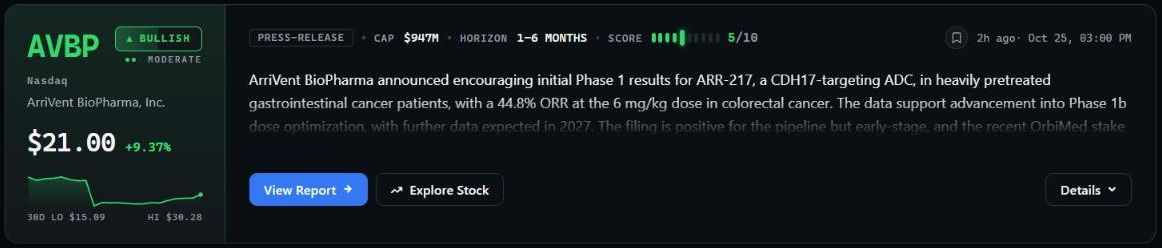 A single card carries the company, the move, the event, and the read.
The left panel — the company
- Ticker and name so you know the stock immediately.
- Sentiment badge — Bullish, Bearish, Neutral, or Mixed — the directional read on this event. More on this in Impact, sentiment & score.
- Price and change at the time you're looking.
- 30-day chart with the period's low and high, for quick context on where the stock sits.
The right panel — the event
- Event type in the top-left label, such as
ANALYST-UPGRADE,INSIDER-BUY, or8-K. This tells you what kind of event it is. - Market cap for a sense of the company's size.
- Score out of 10 with a small bar meter — how much this event is likely to matter. See Impact, sentiment & score.
- Summary — a few sentences explaining what happened and why it's relevant, written so you don't have to open the source document to get the point.
- Timestamp showing how long ago the event landed.
The buttons
- View Report opens the full breakdown: the market snapshot at the time of the event, the detailed read, and related filings. See a full report.
- Explore Stock opens the ticker page, where every recent event, the price history, and the data for that one company live together. See Explore Stock.
- Details expands the card in place for a bit more without leaving the feed.
Reading it fast
In practice you'll glance at three things first: the event type (what happened), the score (does it matter), and the sentiment (which way). If those three line up with something you care about, then you read the summary and decide whether to open the report.
Next, learn what the score and sentiment actually mean in Impact, sentiment & score.