Alert log
The Alerts sent tab on the Watchlist page lists the alerts your rules matched: the last 100, newest first. Use it to check whether a notification went out, or to retrace what hit your names this week. For every event on your tracked tickers, matched by a rule or not, use the Activity tab instead.
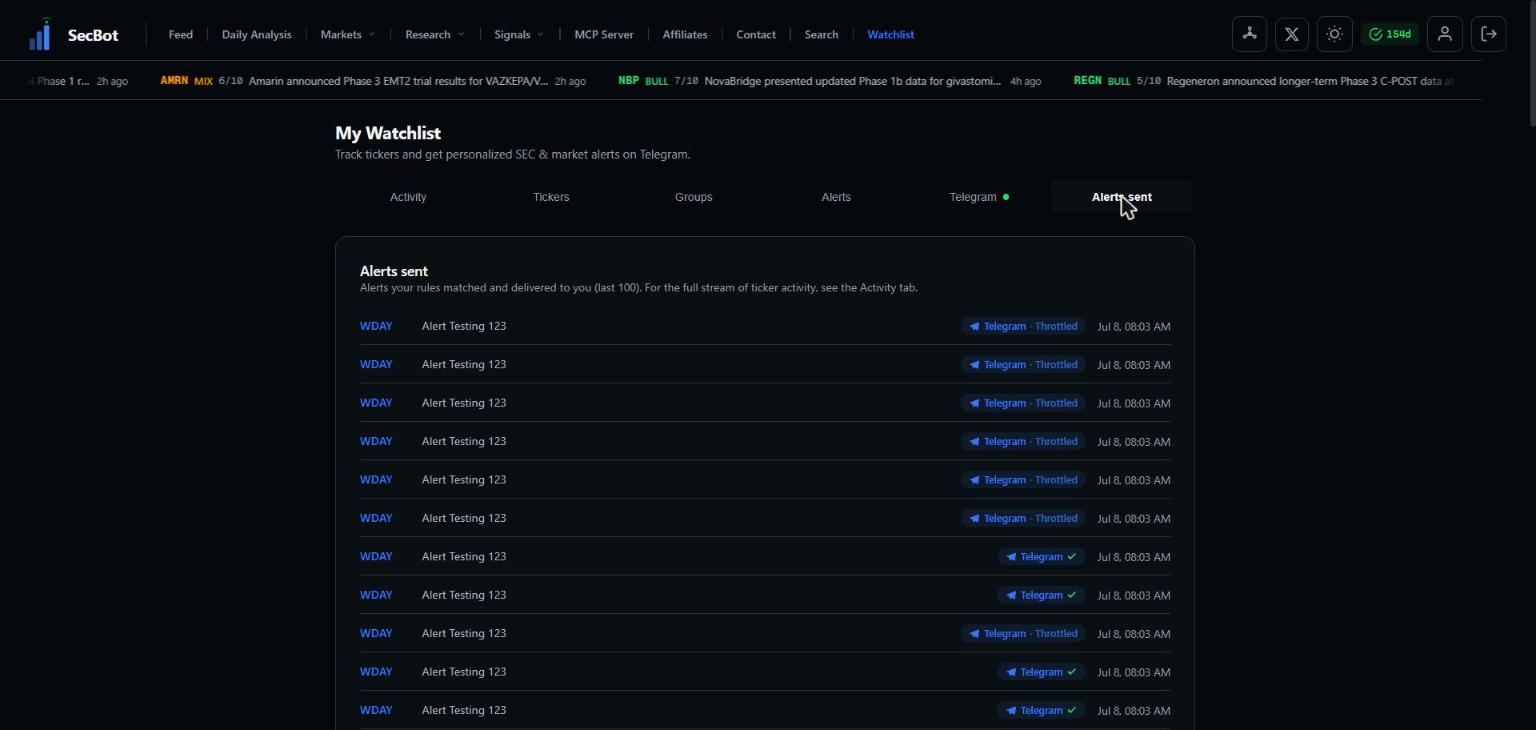 Each row shows the ticker, the rule that matched, how it was delivered and when.
What each row shows
- Ticker — the stock the alert was about.
- Rule — the name of the rule that matched, with the event's impact score (for example
8/10) and sentiment when it has them. - Delivery — Telegram or Email.
- Status — a check mark when the alert was delivered. Otherwise you'll see its state, such as
queued,failed,muted(you had used/mute),quiet_hours_skipped(it landed inside your quiet hours), orthrottled(held back during a burst). - Time — when it was logged.
How to use it
- Confirm delivery. If you didn't see an expected ping, look for the row here first. A check mark means it was sent, so the problem is on the device or app side. A
mutedorquiet_hours_skippedstatus tells you which setting held it back. - No row at all? Then no rule matched. Check that the ticker is in the group or ticker list your rule targets, and that the rule's categories, events, sentiment and score filter fit the event. See Alert rules.
- Tune noisy rules. If one rule fills the log, raise its minimum impact score or narrow its events.
Read the log when something feels off
If alerts seem too frequent or too quiet, the log shows the real picture faster than guessing at your settings.
Related: Alert rules and Delivery & quiet hours.