Connecting
When you link SecBot to Telegram, the alerts your rules match arrive as direct messages from @SecBotAlertsBot. You only have to do this once. Telegram alerts are a subscriber feature.
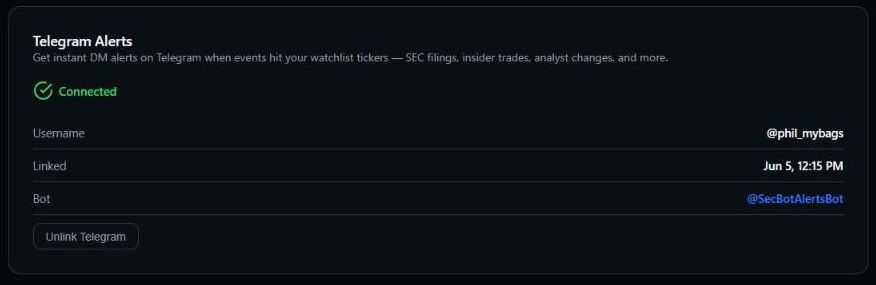 Once linked, the Telegram tab shows your username and the bot sending your alerts.
Link the bot
- On secbot.trade, open Watchlist and go to the Telegram tab.
- Click Open @SecBotAlertsBot on Telegram and start a chat with the bot.
- Back on the website, click Generate Link Code. You'll see a command like
/link AB12CD. Copy it with the copy button. - Paste the command into your chat with the bot and send it. The code expires after 5 minutes, so do this right away.
- The bot replies with the account it linked to. The Telegram tab now shows Connected, with your Telegram username, the date you linked, and the bot.
Once you're linked, alerts start arriving as soon as one of your alert rules matches an event. If you haven't created a rule yet, nothing will arrive. The Getting started checklist at the top of the Watchlist page walks you through all three steps: add tickers, create an alert, connect Telegram.
One code, one link
You link once. After that the bot already knows you, so you only need a new code if you unlink and want to connect again.
What the bot does and doesn't do
The bot delivers alerts and manages your connection. It does not answer data questions or look up quotes. Its seven commands are /start, /link, /unlink, /status, /mute, /unmute and /help. Each one is explained in the Command reference.
Everything about which alerts you get is set on the website:
- Your tickers and ticker groups, on the Watchlist page.
- Your alert rules.
- Telegram on/off, the email digest, and quiet hours, under Delivery & quiet hours.
Disconnecting
Click Unlink Telegram on the Telegram tab, or send /unlink to the bot. Either one stops alerts to that Telegram account.
Next: the full Command reference.